Section note
"Split long text into short sections with clear headings."
Plain text to PDF workflow
Use this guide when you have plain text that needs cleaner presentation, a shareable layout, or a print-friendly export.
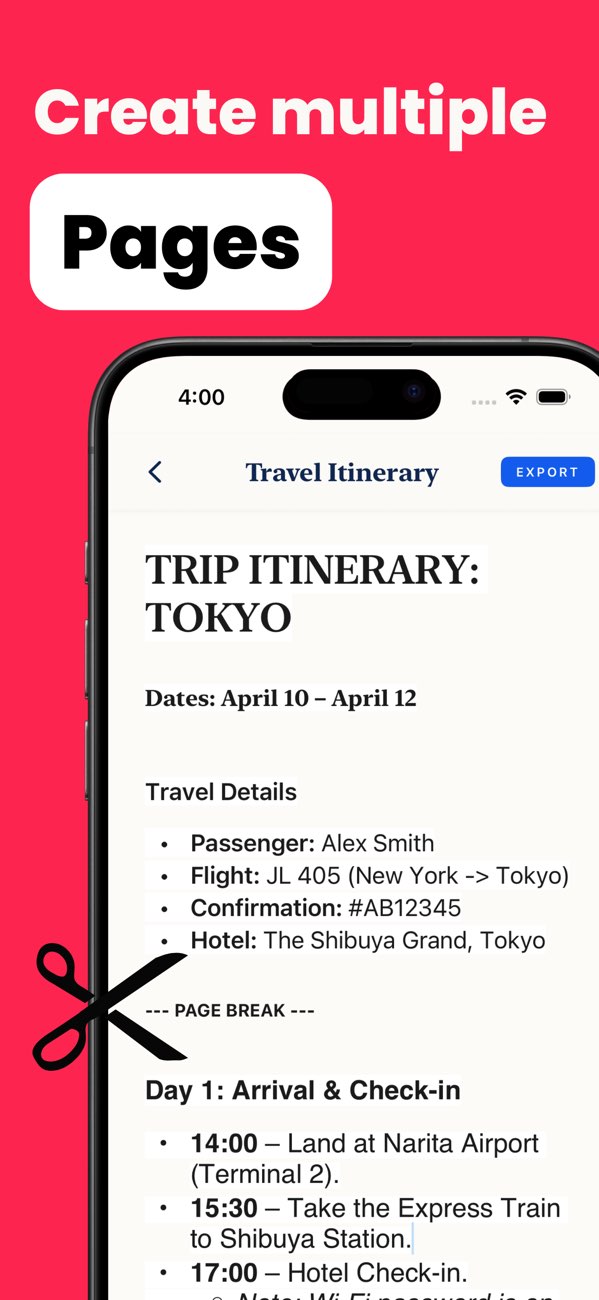
"Split long text into short sections with clear headings."
"Use margins wide enough for easy phone and print reading."
"Readable PDF with no broken paragraphs."
Insert section breaks before exporting so the PDF reads cleanly.
Increase margins before export for better readability.
Shorten paragraphs or insert headings to control flow across pages.
Yes. toPDF can turn plain text into a formatted PDF with layout controls and export options.
Use headings, paragraph spacing, and page setup before exporting.
Yes. toPDF supports both common paper sizes for final export.
Install toPDF and convert plain text into a cleaner, shareable PDF from your phone.