Header
"Date, time, and entry title."
Journal archive workflow
Use this workflow when you want journal entries in a cleaner format for backup, print, or personal records.
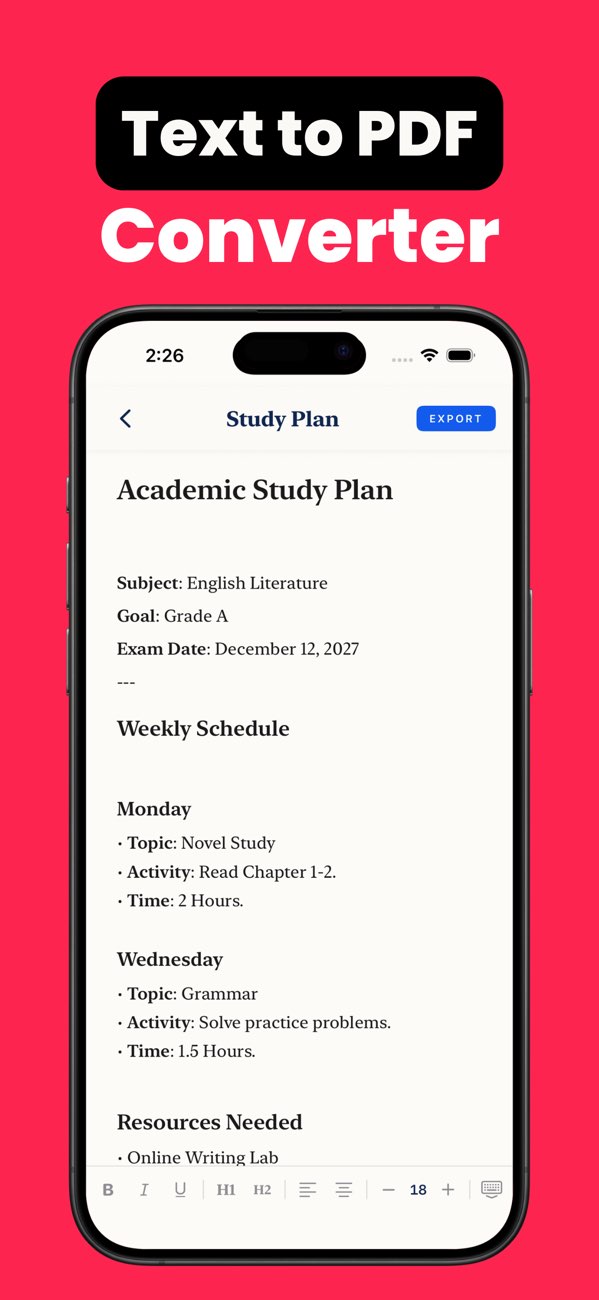
"Date, time, and entry title."
"Short paragraphs instead of one dense block."
"Readable PDF that still feels personal and private."
Add simple headers so archived entries remain searchable later.
Break the entry into smaller sections before export.
Use a simple layout so the journal remains readable over time.
Yes. toPDF is useful for turning typed journal text into a more organized PDF.
PDFs are easier to archive, print, and keep consistent across devices.
Yes, as long as you use clear headings and dates between sections.
Install toPDF and turn private text entries into clean PDFs for easier archiving.