Target area
"Remove person near [left/right/center] without changing the main subject."
People removal workflow
Use this guide to erase unwanted people from scenes while keeping natural background detail.
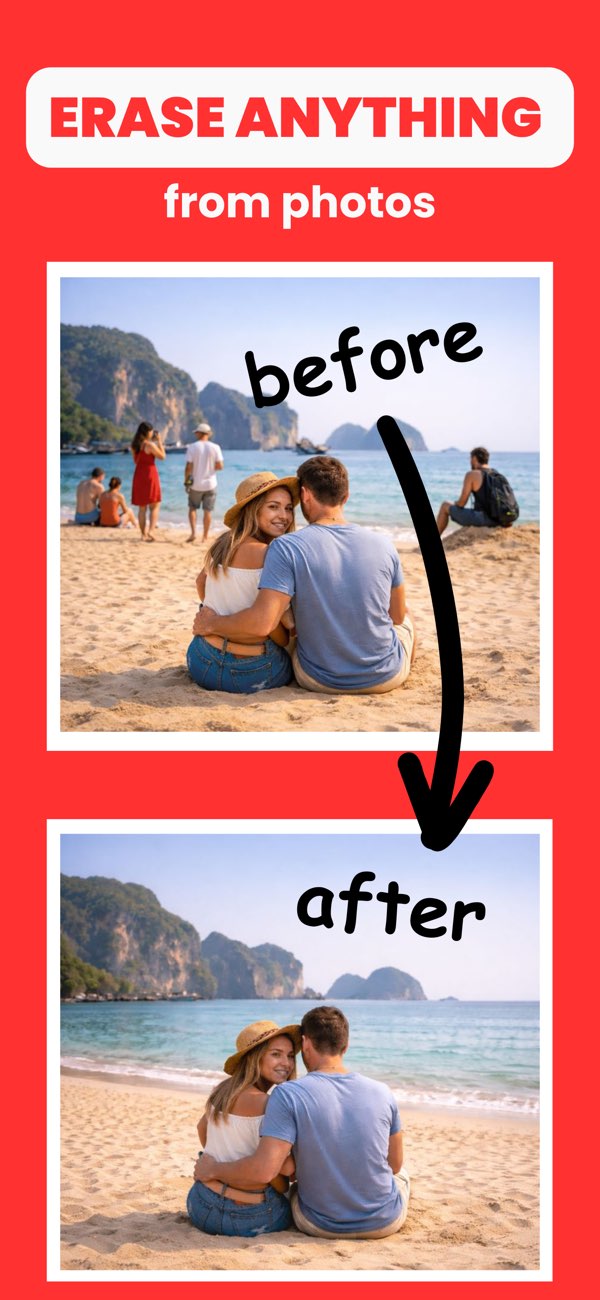
"Remove person near [left/right/center] without changing the main subject."
"Protect straight lines and repeating textures around the removed area."
"No visible seam when viewed at normal zoom."
Reduce brush size and do two smaller passes instead of one aggressive pass.
Re-run removal in smaller segments and protect nearby detail edges.
Use targeted edge corrections after the first pass.
Yes. AnyErase can remove unwanted people from common scenes, especially when background texture is predictable.
Large brush areas and complex backgrounds can create smudging. Use smaller masks and multiple passes.
Edit in zoomed view, keep brush size controlled, and check edges around lines and shadows.
Install Any Erase and remove unwanted people from photos with cleaner, natural-looking edits.