Target object note
"Remove [object] without affecting [subject area]."
Object cleanup workflow
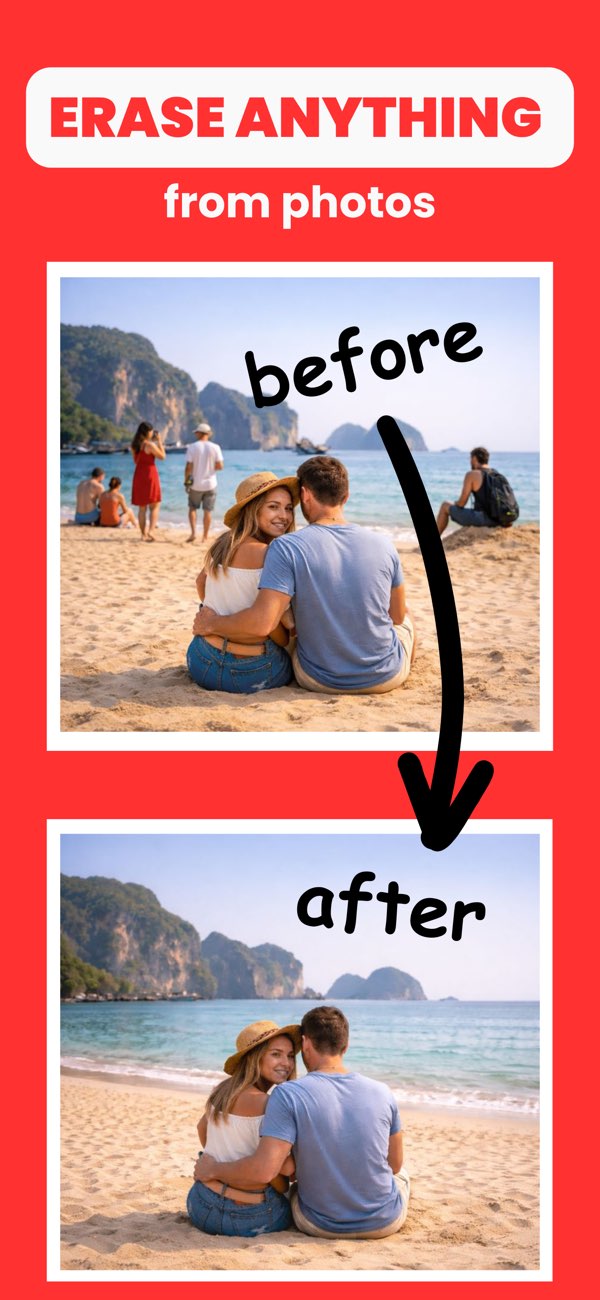
Follow this flow to remove distracting objects while keeping texture, depth, and edge continuity believable.
"Remove [object] without affecting [subject area]."
"Keep nearby pattern continuity around [surface type]."
"Check seams around edges before export."
Shrink mask to only cover unwanted object footprint.
Do a second pass focused only on broken edges.
Validate each object removal before moving to the next.
Common items like signs, bags, cables, litter, and small distractions can often be removed effectively.
Mask tightly around the object and inspect edges at zoom before final export.
For better quality, remove one object at a time and validate each change.
Install Any Erase and remove distracting objects with cleaner, more natural photo results.