Intent note
"Clean background while preserving the original signature strokes."
Signature cleanup workflow
Use this guide when you photographed a signature on paper and need a cleaner result for document placement.
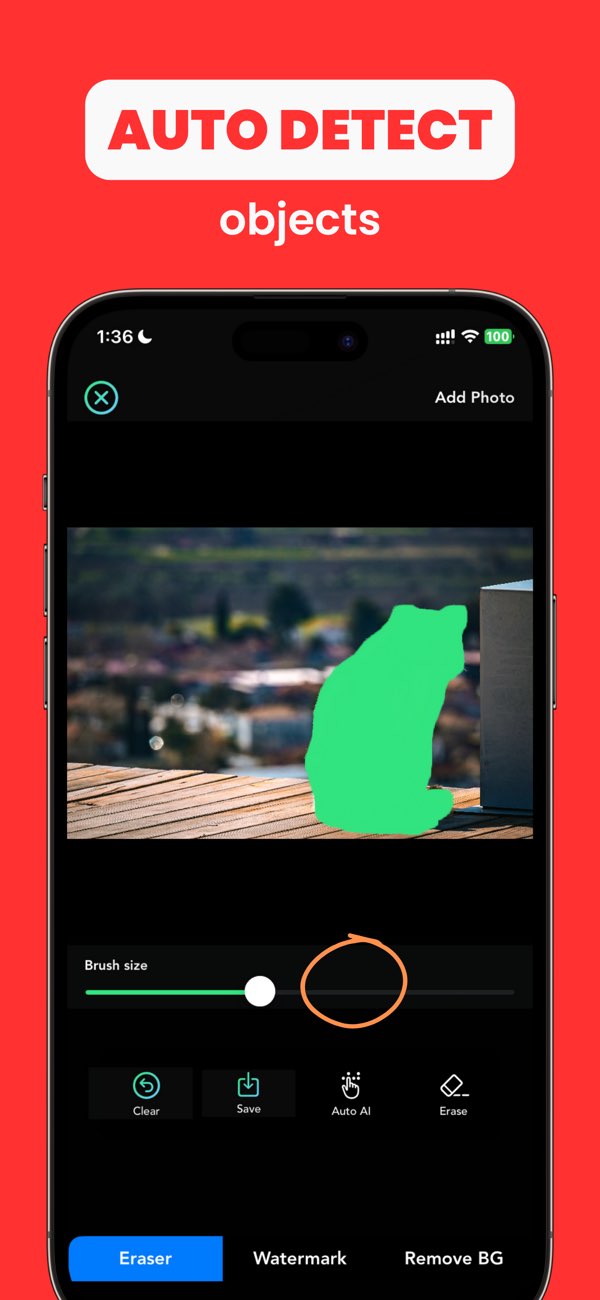
"Clean background while preserving the original signature strokes."
"Do not thin or distort curved pen lines."
"Signature should look clear enough for document placement."
Undo and reduce the mask so only background pixels are targeted.
Run another pass on the shadow only instead of the full area.
Work at higher zoom around thin strokes and loops.
Yes. AnyErase can help simplify the background and preserve the signature more cleanly for reuse.
This workflow focuses on cleaning the visual background so the signature is easier to place into other documents.
Protecting thin pen strokes while removing paper shadows and uneven background noise.
Install Any Erase and prepare cleaner signature images directly from your phone.